Crop, rotate, flip and straighten an image, free
Cut a photo down to the part that matters, at a ratio or exact pixel size a site asks for.
- Free, no sign-up
- No upload
- Up to 50 files
How it works
How to use it
Cut a photo down to the part that matters, at a ratio or exact pixel size a site asks for. This image cropper keeps PNG transparency, and rotate, straighten and flip are one click away. It all runs on your device. Up to 50 files per batch, each up to 40 megapixels at full quality.
- 1
Drop the picture you want
Drop the picture you want to crop. On a phone, tap the drop area and pick it from your library.
- 2
Pick a ratio (Free
Pick a ratio (Free, 1:1, 4:5, 4:3, 3:2, 16:9, 9:16 or 3:4) and drag the box over the part you want to keep.
- 3
For an exact size
For an exact size, type an output width or height in pixels. Choose JPG, PNG or WebP, then click Crop and download.
- 4
To rotate
To rotate, flip or straighten, use Rotate image or Flip image, or open the full editor.
What you get
Built for real batches, not just one file
Ratio locks
Free, 1:1, 4:5, 4:3, 3:2, 16:9, 9:16 and 3:4.
Crop image by pixels
Type an output width or height after you crop.
A photo cropper that keeps PNG transparency when you save as PNG.
Rotate in 90 degree steps, straighten a tilted horizon and flip or mirror in the full editor.
Runs in your browser. No upload, no signup, no watermark.
Step by step
What it looks like
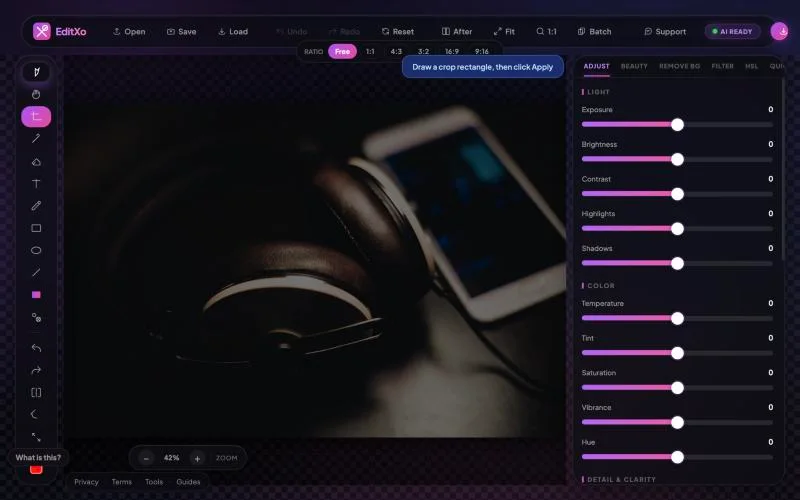
In depth
Crop an image to exact pixels or a fixed ratio
For a specific shape, lock the ratio before you drag: 1:1 for a square, 4:5 for an Instagram portrait, 16:9 for a video thumbnail, 9:16 for a story.
To crop an image to size, set the ratio first, then type the pixel width or height you need. Type one side and the other follows, so the shape stays the same. Check the result size shown after you crop. The Presets tab in the full editor crops and resizes to common sizes in one click. A 4 by 5 print crop is the same 4:5 ratio as an Instagram portrait.
In depth
Mirror an image
Flip horizontal mirrors the photo left to right. It fixes selfies that came out reversed and text that reads backwards. Flip vertical turns it upside down. Both are one click in the full editor and can be undone. You can also use the Flip image page.
In depth
Straighten a horizon
Rotate L and R turn the image in 90 degree steps. For a slightly tilted horizon, use the Straighten slider in the Effects section of the Adjust tab in the full editor. Small values, usually under 3 degrees, are enough. Straightening crops a little from the edges, so do it before your final crop.
Quality and size
Crop versus resize
Cropping removes part of the picture and changes its shape. Resizing keeps the whole picture and changes its pixel dimensions. If a platform wants a square, crop with the 1:1 lock first, then resize if it also wants a specific size. If it only wants a smaller file, you probably need neither: save as WebP or lower the JPG quality instead.
In depth
Keyboard shortcuts in the full editor
| Key | Action |
|---|---|
| C | Crop tool |
| V | Select / move |
| H | Hand (pan the canvas) |
| T | Text |
| B | Brush |
| I | Eyedropper |
| Ctrl+Z / Ctrl+Y | Undo / Redo |
FAQ
Frequently asked questions
Can’t find an answer? The guides cover formats, sizes and privacy in depth.
Read the guidesDoes cropping a PNG keep the transparency?
Yes, when you save as PNG. The crop only removes pixels, so see-through areas stay see-through. If you save a PNG as JPG, transparent areas are filled with a solid colour, because JPG cannot hold transparency.
How do I crop an image to specific dimensions?
Pick the ratio you need, drag the box, then type the output width or height in pixels and click Crop. The result size is shown after the crop.
How do I mirror an image online?
Open the full editor and click Flip H to mirror it left to right, or Flip V to turn it upside down. The Flip image page does the same.
Are my photos uploaded to a server?
No. EditXo runs entirely inside your browser using your own device. Your images are never uploaded, transmitted or stored by us, so there is nothing for anyone to intercept or leak.
Can I crop a photo to a fixed ratio for Instagram?
Yes. Lock the ratio to 1:1 for a square or 4:5 for a portrait post, 9:16 for a story. The Presets tab in the full editor also crops and resizes to common social, banner and marketplace sizes in one click.
Does cropping reduce quality?
No. Cropping removes pixels but does not change the remaining ones. Saving as JPG or WebP at a low quality setting, or resizing larger, is what affects sharpness.
Can I crop a circle?
Yes. Use the circle crop page: drag to position, zoom, and download a round PNG with transparent corners.
Is it free? Do I need an account?
It is free and there is no account. No watermark is added.
Related tools
More free tools
Done here? Make it look great.
Adjust, retouch and add effects in the full editor. Still 100% on your device.