Resize an image to exact pixels, a percentage or a file size
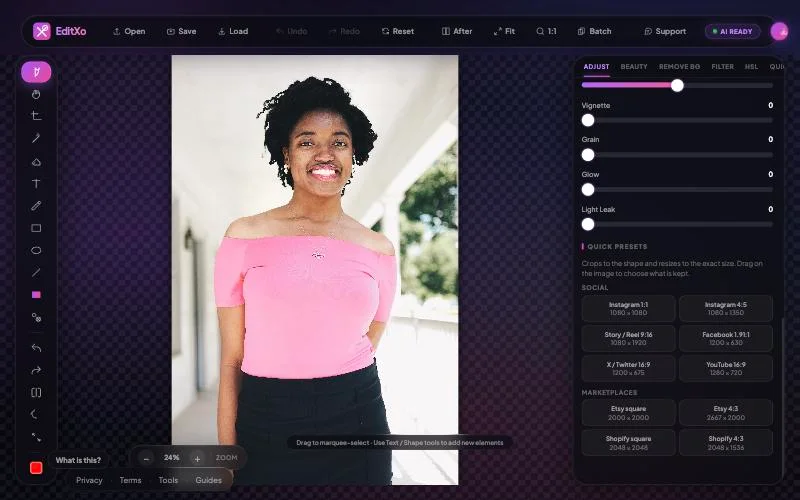
Type a width and height, scale by percentage, or pick a platform preset such as Instagram 1080 x 1080 or YouTube 1280 x 720.
- Free, no sign-up
- No upload
- Up to 50 files
How it works
How to use it
Type a width and height, scale by percentage, or pick a platform preset such as Instagram 1080 x 1080 or YouTube 1280 x 720. Then export as JPG, PNG, WebP or AVIF with a quality slider that shows the estimated file size, so you can land under a KB limit. The resize runs on your device: no upload, no account, no file-size cap.
- 1
Open the editor
Open the editor and add your photo (PNG, JPG, WebP or HEIC).
- 2
Click Resize
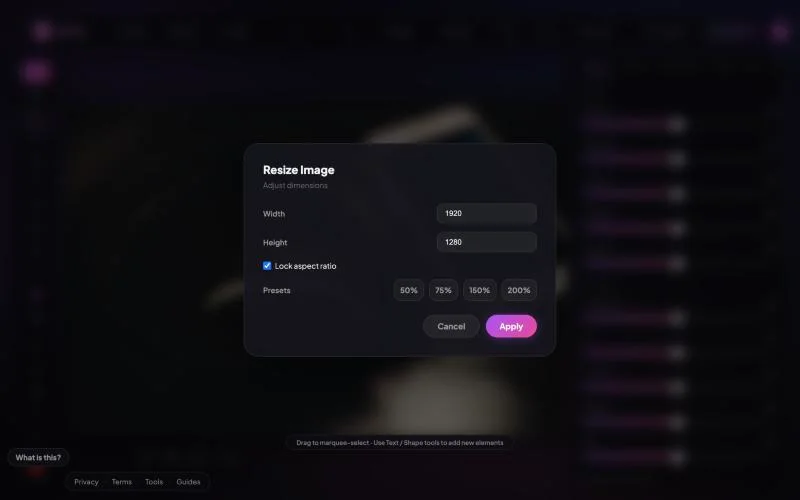
Click Resize in the left toolbar.
- 3
Enter a width
Enter a width and height in pixels, or pick a percentage preset. Keep the lock on to preserve proportions.
- 4
Click Export
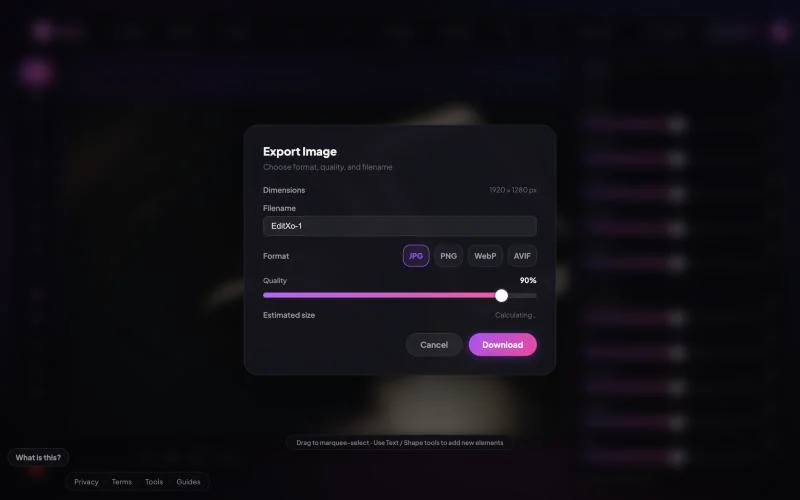
Click Export, choose a format and quality, and download. Nothing is uploaded at any point.
What you get
Built for real batches, not just one file
Exact pixel dimensions or percentage scaling.
Export as JPG, PNG, WebP or AVIF with a quality slider, which is also how you shrink the file size.
One-click sizes in the Presets tab for 17 platforms
Social posts, covers and banners, Amazon, eBay, Etsy and Shopify.
Crop first if you need any other shape, then resize to the final dimensions.
No upload, no account, no watermark, no file-size cap imposed by a server.
Step by step
What it looks like
Quality and size
Resize to a KB target, for example 100 KB or 200 KB
Forms and portals often cap uploads at a file size rather than a pixel size. Two things decide the size of a JPG: its pixel dimensions and its quality setting. Reduce the dimensions first, since a photo that is shown at 800 pixels wide gains nothing from 4000. Then export as JPG and lower the quality slider while watching the estimated size next to it until it reads under your limit. Quality 70 to 80 still looks clean on screen; WebP at the same setting is smaller again.
For a 20 KB passport or form photo, resize to the exact pixels the form asks for, export as JPG and bring the quality down until the estimate fits.
In depth
Resize for Instagram without cropping
Instagram keeps any ratio between 1.91:1 and 4:5, so a landscape or portrait photo does not have to be cropped square. Resize the long side to 1080 pixels and keep the ratio locked; the Presets tab also has Instagram 1:1, 4:5 and Story 9:16 if you want the exact shapes.
In depth
Common sizes
These are taken from each platform’s own help pages; the guides for Instagram, Etsy and Shopify, Amazon, eBay, LinkedIn and profile pictures cover each in detail. Every size in the table below with a tick in the last column is a one-click size in the Presets tab: it crops to the right shape, resizes to the exact size, and lets you drag to choose what is kept. For anything else, crop with a ratio lock or freehand, then enter the size in the Resize dialog.
| Use | Size (pixels) | Shape | Quick Preset |
|---|---|---|---|
| Instagram square post | 1080 x 1080 | 1:1 | Yes |
| Instagram portrait post | 1080 x 1350 | 4:5 | Yes |
| Instagram story or Reel | 1080 x 1920 | 9:16 | Yes |
| LinkedIn link post | 1200 x 627 | 1.91:1 | Yes |
| Facebook link or shared image | 1200 x 630 | 1.91:1 | Yes |
| X (Twitter) image | 1200 x 675 | 16:9 | Yes |
| YouTube thumbnail | 1280 x 720 | 16:9 | Yes |
| LinkedIn cover | 1584 x 396 | 4:1 | Yes |
| X header | 1500 x 500 | 3:1 | Yes |
| Facebook Page cover | 851 x 315 | about 2.7:1 | Yes |
| YouTube banner | 2560 x 1440 | 16:9 | Yes |
| Amazon product, square | 2000 x 2000 | 1:1 | Yes |
| eBay listing, square | 1600 x 1600 | 1:1 | Yes |
| Etsy listing, square | 2000 x 2000 | 1:1 | Yes |
| Etsy listing, landscape | 2667 x 2000 | 4:3 | Yes |
| Shopify product, square | 2048 x 2048 | 1:1 | Yes |
| Shopify product, landscape | 2048 x 1536 | 4:3 | Yes |
| Profile pictures (LinkedIn, X, Facebook, YouTube) | 400 to 800 square | 1:1, shown as a circle | Profile picture maker |
| Email or newsletter image | 600 to 800 wide | any | Resize |
| Website hero image | 1600 to 1920 wide | any | Resize, export WebP |
In depth
Making the file smaller without changing the dimensions
Dimensions and file size are different things. If a form says "maximum 2 MB" or "under 500 KB", you usually do not need fewer pixels; you need a more efficient format or a lower quality setting. In the Export dialog, choose WebP (or AVIF for the smallest result) and lower the quality until the file is under the limit. Quality 80 is visually identical to the original for most photos. Keep PNG only if you need transparency.
In depth
Resizing without losing sharpness
Shrinking a photo keeps it sharp. Enlarging one cannot add detail the original never had; EditXo does not pretend otherwise and does not offer AI upscaling. If a platform needs a larger image than you have, use the largest original you can find rather than scaling a small one up.
FAQ
Frequently asked questions
Can’t find an answer? The guides cover formats, sizes and privacy in depth.
Read the guidesHow do I resize an image to 1080 x 1080?
Open the photo, click Instagram 1:1 in the Presets tab, or open Resize and type 1080 by 1080. If the photo is not square, crop it first so nothing is squashed.
How do I resize an image to under 100 KB or 200 KB?
Reduce the pixel dimensions to what you need, export as JPG, and lower the quality slider until the estimated file size shown in the export dialog is under the limit.
Can I resize a photo to 1920 x 1080?
Yes. Crop to 16:9 first so the shape matches, then type 1920 by 1080 in Resize, or use the YouTube thumb preset (1280 x 720) and resize up to 1920 x 1080.
Are my photos uploaded to a server?
No. EditXo runs entirely inside your browser using your own device. Your images are never uploaded, transmitted or stored by us, so there is nothing for anyone to intercept or leak.
Can I resize several images at once?
Not yet. Batch mode applies adjustments and filters to many images; batch resize is on the roadmap. Each image takes a few seconds on its own in the meantime.
How do I make the file smaller without changing the dimensions?
Export as WebP or AVIF, or lower the JPG quality in the Export dialog. Both options shrink the file considerably without changing the pixel size.
Will resizing reduce the quality?
Making an image smaller keeps it sharp. Making it larger spreads the same detail over more pixels and looks soft. Start from the largest original you have.
Is there a file-size limit?
Not one set by a server, because there is no server. Very large images are limited only by the memory of your device.
Is EditXo free? Do I need an account?
EditXo is free to use and there is no account to create. Open the editor, drop in a photo and start editing.
Which image formats are supported?
You can open PNG, JPG, WebP and HEIC photos. You can export the result as PNG, JPG, WebP or AVIF.
Related tools
More free tools
Done here? Make it look great.
Adjust, retouch and add effects in the full editor. Still 100% on your device.