Enhance photo quality online, free, in one click
Your photo looks dull, soft or grainy.
- Free, no sign-up
- No upload
- Up to 50 files
How it works
Three steps, under a minute
Your photo looks dull, soft or grainy. Pick one fix: Auto Enhance corrects brightness, contrast and colour, Smart Sharpen makes the photo clearer, and Night Mode Denoise cleans low-light grain, all on your device. It is a photo enhancer made of ordinary image processing, not AI. Up to 50 files per batch, each up to 40 megapixels at full quality.
- 1
Add your files
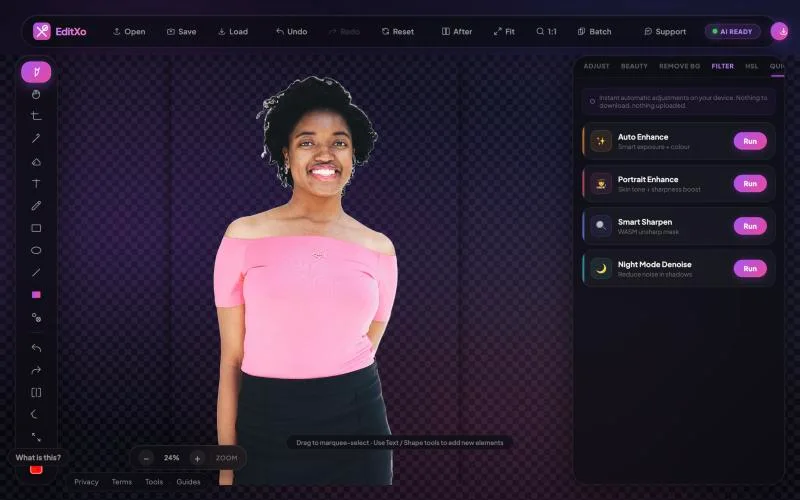
Drop a photo on the tool above. Auto Enhance is ticked: it measures the photo and corrects brightness, contrast, temperature, saturation and vibrance.
- 2
Enhance
Open Options to add Portrait Enhance for faces, Smart Sharpen for soft detail or Night Mode Denoise for grain. The preview updates, and the split view compares with the original.
- 3
Download
Click Enhance and download as JPG, PNG or WebP.
What you get
Built for real batches, not just one file
Auto Enhance
Measures the photo and corrects brightness, contrast, temperature, saturation and vibrance in one click.
Portrait Enhance
Warms skin tones, lifts shadows, softens highlights and adds clarity.
Smart Sharpen
Boosts sharpness and clarity to recover soft detail, so a photo looks clearer.
Night Mode Denoise
A noise-reduction filter for low-light grain.
An image enhancer that runs on your device. No upload, no signup, no watermark.
Step by step
What it looks like
In depth
Make a photo clearer in one click
Tick Smart Sharpen and click Enhance. It raises sharpness and clarity together, which makes a slightly soft photo look clearer. It cannot rebuild a photo that is badly out of focus or smeared by motion, because that detail was never recorded.
If the result looks crunchy, run it again without Smart Sharpen, or lower Sharpness in the Adjust tab of the full editor.
In depth
Sharpen a soft photo
Smart Sharpen brings back detail in a photo that is slightly soft from a small sensor, a phone lens or a gentle resize. This is the way to enhance image quality when the problem is softness. It does not add pixels, so the photo stays the same size.
In depth
Remove noise from a low-light photo
Night Mode Denoise smooths the coloured grain that phone cameras produce indoors and at night while keeping edges.
When you tick Smart Sharpen and Night Mode Denoise together, the tool applies the colour and sharpen fixes first and then the denoise. If sharpening makes the grain worse, run Night Mode Denoise on its own, download, drop that file back in, and then tick Smart Sharpen.
In depth
Which tool for which problem
To improve photo quality, start from what you see:
| The photo looks | Use | Then, if needed |
|---|---|---|
| Flat, dull, slightly dark or washed out | Auto Enhance | Adjust tab: Exposure, Contrast, Vibrance |
| A portrait with cool or uneven skin tone | Portrait Enhance | Beauty tab for skin smoothing |
| Soft, slightly out of focus, lacking crisp edges | Smart Sharpen | Adjust tab: lower Sharpness if halos appear |
| Grainy or speckled, shot in low light | Night Mode Denoise, then Smart Sharpen in a second pass | Lower Sharpness if grain returns |
| Small and pixelated | Not fixable here | Find a larger original, or try Enlarge image |
Good to know
What these tools are, honestly
Many editors label every automatic button "AI". In EditXo the only machine-learning model is the background remover. The four tools on this page are automatic adjustments: Auto Enhance analyses the image statistics and chooses slider values; Portrait Enhance and Smart Sharpen apply fixed slider sets; Night Mode Denoise is a classic noise-reduction filter. That is why they are instant and need no download.
Sharpen recovers detail that is present but soft. Denoise trades a little fine texture for less grain. Auto Enhance makes sensible global changes; it does not know what the scene should look like, so a sunset meant to be dark may get brightened. None of them increase resolution.
FAQ
Frequently asked questions
Can’t find an answer? The guides cover formats, sizes and privacy in depth.
Read the guidesHow do I make a blurry photo clearer?
Tick Smart Sharpen and click Enhance. That works when the photo is only a little soft. A photo that is badly out of focus or blurred by motion cannot be fixed by sharpening, and no tool that runs here can bring that detail back.
Is this a free photo enhancer without a watermark?
Yes. It is free, with no watermark, no signup and no upload.
Are these real AI tools?
No. Auto Enhance, Portrait Enhance, Smart Sharpen and Night Mode Denoise are ordinary image-processing routines that measure the photo and adjust it. They cannot invent detail. The one machine-learning model in EditXo is the background remover.
Can it enhance a photo to 4K or upscale it?
No. The tools improve the pixels you have; they do not add pixels. Enlarge image makes a photo bigger with resampling, but it cannot add real detail.
Are my photos uploaded to a server?
No. EditXo runs entirely inside your browser using your own device. Your images are never uploaded, transmitted or stored by us, so there is nothing for anyone to intercept or leak.
Does it keep the original?
Yes. The tool saves a new file and your original stays on your device.
Related tools
More free tools
Done here? Make it look great.
Adjust, retouch and add effects in the full editor. Still 100% on your device.