Retouch a photo online free: smooth skin that still looks like skin
Smooth skin, even out skin tone, add a little blush, brighten the face and eyes and soften blemishes, with one-click presets or ten manual sliders.
- Free, no sign-up
- No upload
- Up to 50 files
How it works
Three steps, under a minute
Smooth skin, even out skin tone, add a little blush, brighten the face and eyes and soften blemishes, with one-click presets or ten manual sliders. Every change is reversible and the Before/After button shows exactly what moved. The photo never leaves your device, which matters more for faces than for anything else. Up to 50 files per batch, each up to 40 megapixels at full quality.
- 1
Add your files
Drop a portrait or selfie on the tool above. Natural Beauty is applied straight away; the split view shows the original on the left.
- 2
Retouch
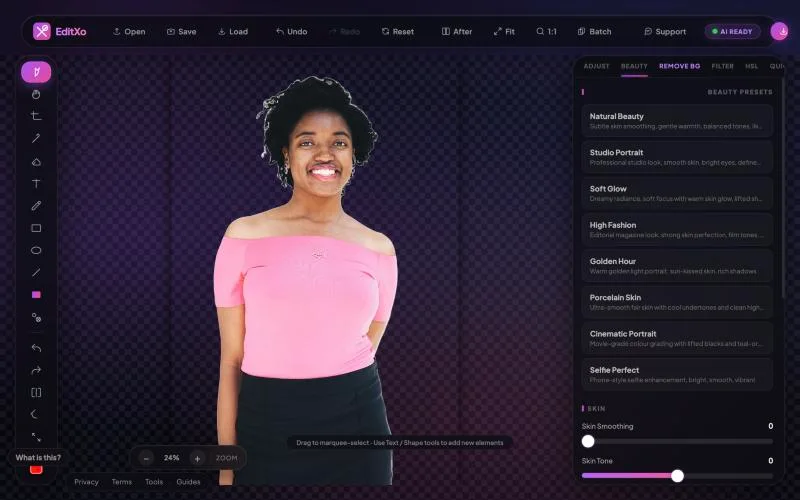
Pick another look (Studio Portrait, Soft Glow, High Fashion, Golden Hour, Porcelain Skin, Cinematic Portrait, Selfie Perfect) and drag Strength until it still looks like skin.
- 3
Download
Download as JPG, PNG or WebP. The ten manual sliders behind every look (Skin Smoothing, Skin Tone, Blush, Face Brightness, Lip Colour, Eye Brighten and more) are in the editor’s Beauty tab.
What you get
Built for real batches, not just one file
Presets
Natural Beauty, Studio Portrait, Soft Glow, High Fashion, Golden Hour, Porcelain Skin, Cinematic Portrait and Selfie Perfect.
Manual controls
Skin Smoothing, Skin Tone, Blush, Face Brightness, Lip Color, Eye Brighten, plus Natural HDR, Film Tone, Color Harmony and Soft Focus.
Pairs with the one-click Portrait Enhance, Smart Sharpen and Night Mode Denoise.
Non-destructive
Undo any step, compare with Before/After.
Runs in your browser. No upload, no signup, no watermark.
Step by step
What it looks like
In depth
Smooth skin without the plastic look
Skin Smoothing softens texture while keeping edges such as eyes, lips and hair sharp. Keep it between 30 and 50 for a natural result; above 70 skin starts to look like wax. Pair it with a touch of Skin Tone to even out redness and Face Brightness to open up shadows under the eyes. The Natural Beauty and Studio Portrait presets are tuned this way already.
In depth
Blemishes and spots
Smoothing reduces blemishes but does not remove a single spot cleanly. For that, zoom in and use the Clone Stamp tool in the tool pill: Alt+click a patch of clean skin next to the spot, then paint over the spot. A few clicks is usually enough.
Settings
Choosing a preset
| Preset | Look | Good for |
|---|---|---|
| Natural Beauty | Light smoothing, texture kept | Everyday photos, profile pictures |
| Studio Portrait | Even light, slightly lifted shadows | Headshots, LinkedIn |
| Soft Glow | Gentle glow, softer contrast | Flattering indoor shots |
| High Fashion | Stronger contrast and polish | Editorial, fashion |
| Golden Hour | Warm tone, soft highlights | Outdoor evening light |
| Porcelain Skin | Brighter, smoother skin | Beauty and makeup photos |
| Cinematic Portrait | Cooler shadows, filmic contrast | Moody portraits |
| Selfie Perfect | Balanced smoothing and brightness | Front-camera selfies |
In depth
Keeping it natural
Over-smoothing is the most common retouching mistake, and it is obvious to everyone except the person doing it. Start with Natural Beauty, zoom to 100% with the 1:1 button, and check that pores and fine lines are still visible. If skin looks like plastic, lower Skin Smoothing. Soft Focus and Blush should be subtle: a little lifts a photo, a lot makes it look foggy or painted.
Retouching cannot fix focus. If the eyes are soft, run Smart Sharpen from the Quick Fix tab first, then retouch.
Good to know
Why privacy matters most here
Selfies and family portraits are the photos people least want sitting on a stranger’s server. Most online retouching tools upload them, and some keep them. EditXo processes everything in your browser, so the photo never leaves your phone or computer. You can confirm this in your browser’s developer tools under the Network tab: no request carries the image.
FAQ
Frequently asked questions
Can’t find an answer? The guides cover formats, sizes and privacy in depth.
Read the guidesHow do I smooth skin in a photo online for free?
Open the photo, go to the Beauty tab and raise Skin Smoothing to around 30 to 50, or pick the Natural Beauty preset. Export as JPG or PNG. There is no watermark and no signup.
Can I remove blemishes from a photo?
Yes. Skin Smoothing softens them, and the Clone Stamp tool removes individual spots: Alt+click clean skin nearby, then paint over the blemish.
Are my photos uploaded to a server?
No. EditXo runs entirely inside your browser using your own device. Your images are never uploaded, transmitted or stored by us, so there is nothing for anyone to intercept or leak.
Will it make my skin look fake?
The presets are tuned to keep texture. Start with Natural Beauty and lower Skin Smoothing if you want an even lighter touch.
Can it change face shape or whiten teeth?
No. EditXo adjusts skin, tone, light, eyes, blush and lip colour. It does not reshape features, slim faces or whiten teeth.
Does it work on group photos?
Yes. The smoothing applies across the photo, so it works for several faces. Keep Skin Smoothing low so backgrounds are not softened too much.
Is EditXo free? Do I need an account?
EditXo is free to use and there is no account to create. Open the editor, drop in a photo and start editing.
Which image formats are supported?
You can open PNG, JPG, WebP and HEIC photos. You can export the result as PNG, JPG, WebP or AVIF.
Related tools
More free tools
Done here? Make it look great.
Adjust, retouch and add effects in the full editor. Still 100% on your device.