How to make a logo transparent, free and without uploading it
A JPG logo has a white box around it, so to make a logo transparent you need to remove that background and save a PNG. Here is how, in a couple of minutes, without uploading the file. You also get a quick way to check the file is really transparent.
Step by step
Get a PNG with a transparent background
The quickest way is the Remove background tool. It runs in your browser, so the logo stays on your device. There is no watermark and no account.
- 1
Drop your logo on the Remove background tool. PNG, JPG, WebP and HEIC files all work.
- 2
Click Remove background. The white or coloured box around the logo is cut away.
- 3
Download the result as a transparent PNG.
In depth
What transparency actually is
Every pixel in a PNG can carry a fourth value alongside red, green and blue: alpha, or opacity. A pixel with zero alpha is invisible. A JPG has no alpha channel at all, which is why a logo saved as JPG always comes with a solid rectangle behind it. If someone sends you a “transparent JPG”, it is a JPG with a white background, and you will need to remove that background to get a real transparent file.
WebP and AVIF also support transparency and make smaller files than PNG. PNG remains the safe choice when you do not control where the file will be used, because almost every application opens it. See the guide to the best image format for a website for PNG versus WebP.
Step by step
Make a PNG transparent, step by step in the editor
Already have a PNG with a white background? The steps are the same. Use the editor when the edges need hand work.
- 1
To make a logo background transparent, open editxo.com and drop in your logo or product photo. PNG, JPG, WebP and HEIC all work, and the file stays on your device.
- 2
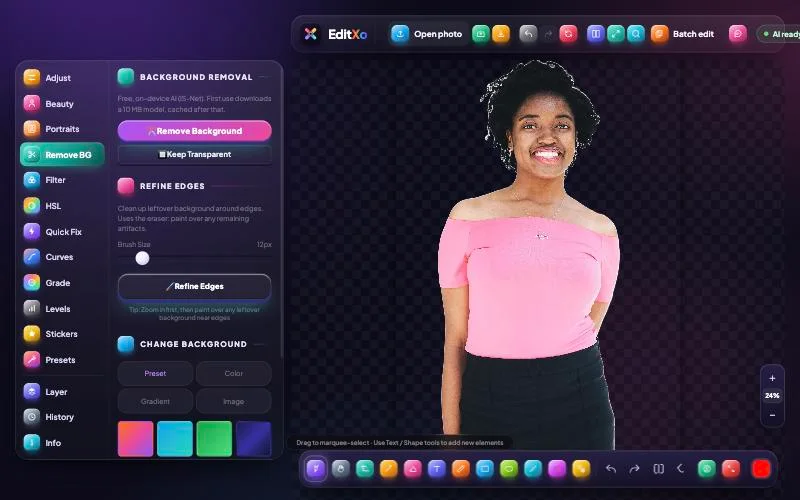
Select the Remove BG tab and click Remove Background. For a logo on a flat white background this takes a few seconds; for a product photo the on-device AI isolates the object.
- 3
Zoom to 100% with the 1:1 button and look at the edges. If a halo of the old background remains, use Refine Edges and paint over it with a small brush.
- 4
Leave Keep Transparent selected. Do not choose a colour or preset background, or the transparency is gone.
- 5
Click Export, choose PNG, and download. The checkerboard you see in the editor is not part of the file; it is how editors show empty pixels.
In depth
Make a logo transparent from a JPG, a screenshot or a scan
Most logos that need fixing arrive as a JPG on white, a screenshot from a website, or a scan of printed stationery. All three work the same way: remove the background, keep the result as PNG. A JPG logo loses nothing by becoming a PNG; the PNG is simply larger on disk because it is lossless.
Flat logos with hard edges and solid colours cut out cleanly. Logos with soft shadows, glows or gradients that fade into the background are harder, because the fade is partly background. Zoom to 100% and check the edge: if a faint white fringe remains, Refine Edges with a small brush removes it. For a logo that sits on a dark background in its original, the same steps apply; the tool detects the subject, not the colour.
If the logo is tiny, say under 300 pixels wide, the edges will look rough after cutting out at any size larger than the original. Ask for the original vector file (SVG, AI or EPS) where one exists, or find the largest copy you have before starting.
Checklist
How to check that a file is really transparent
- Open it in a browser tab. A transparent PNG shows the browser’s background (usually white or dark) around the subject with no rectangle.
- Drop it onto a dark slide or a coloured web page. A hidden white box becomes obvious immediately.
- On a Mac, Preview shows a grey checkerboard behind transparent areas. On Windows, the Photos app shows transparency as white, which is misleading; use the browser test instead.
- File size is a clue, not proof: a logo saved as PNG with transparency is often larger than the same logo as JPG, because PNG is lossless.
Reference
Common mistakes
| Mistake | What goes wrong | Fix |
|---|---|---|
| Exporting as JPG | Transparency is discarded and replaced with white | Export as PNG (or WebP/AVIF if you control the destination) |
| Choosing a white background in the editor | The file looks right on white and wrong everywhere else | Select Keep Transparent before exporting |
| Low-resolution source | Edges look jagged and the AI cutout is rough | Start from the largest original; a vector or 2000 px logo if you have one |
| Semi-transparent shadow kept | Soft shadows turn into grey smudges on dark backgrounds | Refine Edges to remove the shadow, or re-add a shadow in the destination app |
| Anti-aliased white fringe | A thin pale outline around the subject on dark backgrounds | Refine Edges with a 4 to 8 px brush around the outline |
Reference
Transparent logo: sizes that work
| Use | Suggested size | Note |
|---|---|---|
| Website header logo | 400 to 600 px wide, exported at 2x for sharp screens | Keep it under 50 KB; WebP is ideal if your site supports it |
| Email signature | 300 to 400 px wide | Some email clients flatten transparency to white; test in Outlook |
| Marketplace product cutout | 2000 x 2000 px, subject filling 85% | Most marketplaces want a white background, not transparency; see the change-background page |
| Favicon | 512 x 512 px source | Use a simple mark, not the full wordmark |
| Stickers and overlays | Any; keep the original resolution | PNG keeps every pixel exact |
In depth
How this guide was made
On 16 November 2026 we read the MDN image format guide for which formats keep transparency. The steps come from how the EditXo Remove background tool and editor work. The sizes in the table are suggestions, not platform rules. The text was drafted with AI assistance and reviewed by a person before publishing.
In pictures
See it

How do I make a logo transparent?
Open the logo in EditXo, click Remove Background in the Remove BG tab, keep the Keep Transparent option, and export as PNG. The white or coloured background is replaced by transparent pixels. It takes a couple of minutes and nothing is uploaded.
How do I make a PNG transparent?
Drop the PNG on the Remove background tool and click Remove background. The white box is cut away. Download the result as a PNG. If an edge still shows a white fringe, open it in the editor and use Refine Edges.
How do I make a logo background transparent?
Remove the background, then save the file as PNG. A logo with flat colours and a plain white background comes out cleanest. A logo with soft shadows or glows may need a small brush in Refine Edges.
Is there a free transparent logo maker with no watermark?
Yes. EditXo removes a logo background and exports a transparent PNG at full size, free, with no watermark, no signup and no upload; the work happens in your browser. The transparent background logo keeps its original pixel size.
Can a JPG logo be made transparent?
Yes. Remove the background and save the result as PNG. JPG itself cannot store transparency, so the output must be PNG, WebP or AVIF. The finished logo with a transparent background is usually larger on disk than the JPG, because PNG is lossless.
Can I make a transparent PNG from a JPG?
Yes. Open the JPG, remove the background, keep it transparent, and export as PNG. The transparency is created by the background removal; the JPG itself never had any.
Why does my transparent PNG show a white background in Windows Photos?
Windows Photos displays transparent areas as white. The file is fine. Open it in a browser or drop it on a dark slide to see the transparency.
Is a transparent PNG bigger than a JPG?
Usually, because PNG is lossless. For web use, export WebP with transparency instead, which is far smaller and supported by all modern browsers.
Is my logo uploaded anywhere?
No. EditXo runs in your browser. The background removal and the export happen on your device.
Do it yourself
Tools used in this guide
Check the numbers
Sources and further reading
Ready to try it?
Use the free tool or the full photo editor. Everything stays on your device.